Recycle Bin Management - APP
Recycle Bin Management
Files or folders deleted by users are not permanently deleted immediately; instead, they are temporarily stored in the Recycle Bin, effectively preventing data loss caused by accidental actions. In the Recycle Bin, users can perform the following actions:
-
View all deleted files or folders in the Recycle Bin;
-
Restore accidentally deleted files or folders to their original storage locations;
-
Manually empty the Recycle Bin to permanently delete the files.
Please note that files in the Recycle Bin still occupy storage space on your device. We recommend periodically clearing out unnecessary files to free up more storage capacity.
Restore Deleted Files or Folders from the Recycle Bin
The Recycle Bin feature is enabled by default; files deleted by users are temporarily stored in the Recycle Bin. To restore deleted files, follow these steps:
-
Click the “Recycle Bin” app in the app module on the main page to open the [Recycle Bin] page, then locate the file or folder you want to restore.
-
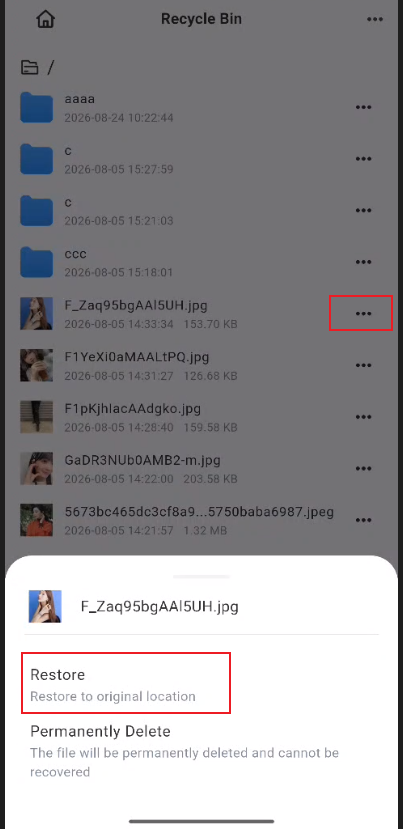
Select the target file or folder, click the “...” button on the right, and select the “Restore” option from the pop-up window.
-
The deleted file or folder will be restored to its original location.
Permanently Delete Files or Folders from the Recycle Bin
The Recycle Bin feature is enabled by default; files deleted by users are temporarily stored in the Recycle Bin. To permanently delete a file, follow these steps:
-
Click the “Recycle Bin” app in the app module on the main page to open the [Recycle Bin] page, then locate the file or folder you want to permanently delete.
-
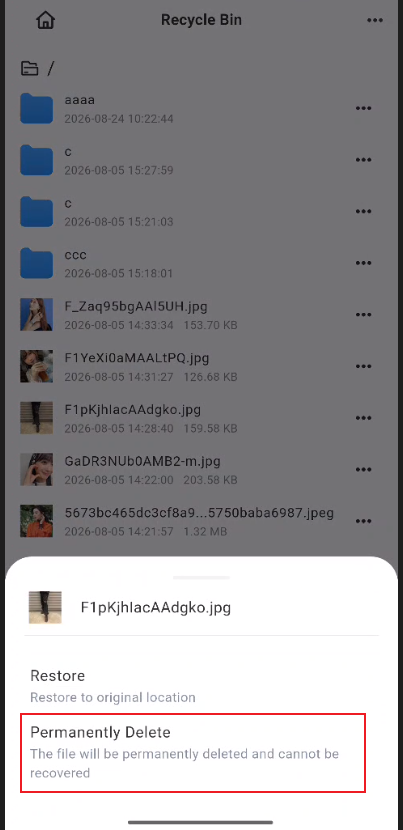
Select the target file or folder, click the “...” button on the right, and select the “Permanently Delete” option from the pop-up menu.
-
Files or folders that are permanently deleted will be removed forever and cannot be recovered.
Empty the Recycle Bin
The Recycle Bin feature is enabled by default; files deleted by users are temporarily stored in the Recycle Bin. To permanently delete all contents from the Recycle Bin, follow these steps:
-
Tap the “Recycle Bin” app in the app module on the home screen to open the [Recycle Bin] page.
-
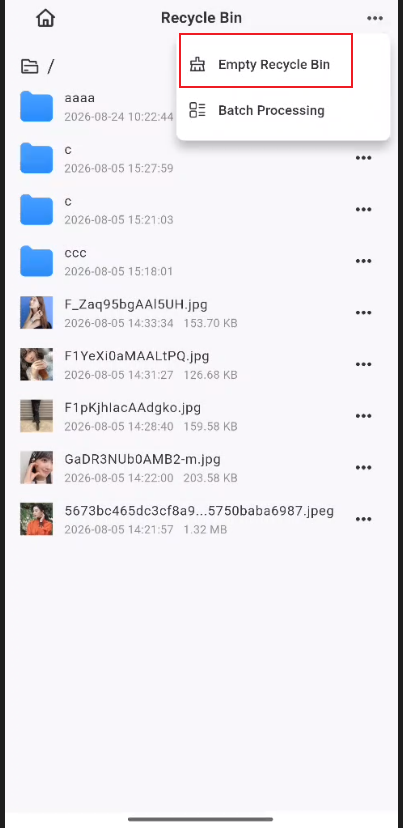
Tap the “...” button in the top-right corner, then select “Empty Recycle Bin” from the pop-up menu.
-
Files or folders that are permanently deleted will be removed forever and cannot be recovered.